

Since my last post on this was in March, it is time to give an update on this item. Based on feedback from the comments here and in other forums, it would seem that all HD media players are now able to play the 60p videos from the Sanyo HD2000 or FH1. Just make sure that they are new models using the current chipsets as older models (like the 1st generation WDTV) cannot play these videos. But to be sure, bring along a 60p video clip and do a physical test on the player you intend to purchase.
For those thinking of getting a HD Media Player, you can refer to my Blog here, just updated, for a quick guide. There is a new companion Blog on choosing a HDTV if you do not have one yet. Both items are necessary to enjoy the fruits of your shooting labor with the HD2000. Have fun!
Ronald Kwok
Subscribe To My Blog

 Posts
All Comments
Posts
All Comments
Friday, December 17, 2010


Friday, June 25, 2010
Hail and Wail to Sanyo
I was hoping that in 2010, Sanyo will release an improved version of the HD2000/FH1 with the long awaited optical image stabilization (OIS) which will make this series a top buy. Anyway, it did not happen and looks like it never will. The new models released do not have OIS and in fact the resolution has dropped to just 1920x1080i and they are aimed at a different market. This is understandable since Sanyo has been acquired by Panasonic and they do not want to compete in the same market segment. The latest Panasonic 700 series has now the 1920x1080p (60p) resolution, presumable using the Sanyo technology and they are getting rave reviews for the video quality.
We owners of the HD2000/FH1 have been enjoying the 60p resolution much earlier and looks like this series will not be continued. It is not perfect but it has many innovative features. Only now the latest Sony series can copy to an external HDD without using a PC calling it Direct Copy; Sanyo already have it earlier as part of the Xacti Library.
I recently got myself the Sony XR350E camcorder since I needed one with a HDD for my travels. It definitely beats the Sanyo HD2000 with its rock steady image stabilization and solid auto-focus and after using it, only then I realized there are plenty of neat features in the Sanyo that are not available in the Sony though it costs substantially more.
So hang-on to your Sanyo camcorders if you have one and those without should get yourself a HD2000/FH1 while it is still available as this will reach cult status or become a collector’s item soon. Happy shooting!
Ronald Kwok
We owners of the HD2000/FH1 have been enjoying the 60p resolution much earlier and looks like this series will not be continued. It is not perfect but it has many innovative features. Only now the latest Sony series can copy to an external HDD without using a PC calling it Direct Copy; Sanyo already have it earlier as part of the Xacti Library.
I recently got myself the Sony XR350E camcorder since I needed one with a HDD for my travels. It definitely beats the Sanyo HD2000 with its rock steady image stabilization and solid auto-focus and after using it, only then I realized there are plenty of neat features in the Sanyo that are not available in the Sony though it costs substantially more.
So hang-on to your Sanyo camcorders if you have one and those without should get yourself a HD2000/FH1 while it is still available as this will reach cult status or become a collector’s item soon. Happy shooting!
Ronald Kwok
Monday, May 31, 2010
Sanyo HD2000 vs Sony XR350E
After playing with the HD2000 for some time, I feel that I must move to something better. Better in the area of image stabilisation and auto-focus, the major setbacks of the HD2000. The camcorder that I opted for is the latest Sony XR350E and the reasons I chose this are in my new Blog on this videocamera. I'll be going for holiday in Germany (leaving tomorrow itself) using this Sony while my wife will be using her Sanyo so it will be a real shoot-out. I'll report the results later in June when I am back. So meanwhile, sit tight and enjoy using your own camcorder that is right for you. Cheers.
Ronald Kwok.
Ronald Kwok.
Friday, April 2, 2010
Spare Battery and Charger
Since I am just a casual camcorder user (actually the HD2000 is not even mine, it belongs to my wife), I do not have much accessories for it. The first accessory that I bought together with the HD2000 is a UV filter. This is for protecting the lens more than anything else from greasy fingers, dirt and the outside world. When you need to, it is much easier to clean the filter than the lens itself. The one that I bought is Kenko made but the more well-known and popular (and so more costly) brand is Hoya. I suppose any reasonable brand will do as it is just a protective piece of glass but purists may disagree. The only important point to note is that the diameter of the thread on the lens of the HD2000 is 40.5mm so you must get the correct size filter. The one on the Sanyo FH1 is slightly smaller at 37.0mm so make sure you pick the right size.
The only other accessories that I have is a spare battery and a battery charger. Thought the battery itself can last reasonably long for some normal shooting, it may not be enough if you are on holiday where you tend to be trigger happy. Nothing can be worse than your battery running out at a crucial moment. The original Sanyo replacement battery for the HD2000 or FH1 is model DB L50. I do not know why, but the Kodak battery model KLIC 5001 is exactly the same item and can be used perfectly as a replacement battery if you want a branded one and this could be cheaper and more easily available than the Sanyo.
Of course there are many nameless replacement batteries, especially those from China and these are much cheaper than the Kodak or Sanyo battery. Buying such nameless battery can be a hit or a miss and there are some horror stories around. But there are also many satisfied customers, for after all so many items are now made in China, most probably the Sanyo and the Kodak as well.
The same goes for the charger. The original Sanyo charger is model VAR-L50 and this is the one to go for if you want peace of mind and don't mind spending a bit more. The cheaper alternative is to go for those unbranded chargers which can do the job equally well but don't know for how long. Do a search on Amazon or other reliable sellers and pick one with the price that suits you and you should be OK. But the choice is yours if you are more comfortable with the branded originals.
Being a cheapskate, I went for a Chinese replacement battery for Kodak KLIC 5001 and a nameless charger. I was very apprehensive in the beginning, but after going through a few charging cycles, everything was OK; touch wood! Initially, the idea was that the replacement battery will only be charged with the charger and the original battery will only be charged in the camcorder via the docking station to protect the innocents. After a while, anything goes and they all seem to be happy with each other. So much for mixed marriages.
And so they live happily ever after. Hopefully!
Ronald Kwok
http://ronaldkwok.atomicblog.hop.clickbank.net/

The only other accessories that I have is a spare battery and a battery charger. Thought the battery itself can last reasonably long for some normal shooting, it may not be enough if you are on holiday where you tend to be trigger happy. Nothing can be worse than your battery running out at a crucial moment. The original Sanyo replacement battery for the HD2000 or FH1 is model DB L50. I do not know why, but the Kodak battery model KLIC 5001 is exactly the same item and can be used perfectly as a replacement battery if you want a branded one and this could be cheaper and more easily available than the Sanyo.
Of course there are many nameless replacement batteries, especially those from China and these are much cheaper than the Kodak or Sanyo battery. Buying such nameless battery can be a hit or a miss and there are some horror stories around. But there are also many satisfied customers, for after all so many items are now made in China, most probably the Sanyo and the Kodak as well.
The same goes for the charger. The original Sanyo charger is model VAR-L50 and this is the one to go for if you want peace of mind and don't mind spending a bit more. The cheaper alternative is to go for those unbranded chargers which can do the job equally well but don't know for how long. Do a search on Amazon or other reliable sellers and pick one with the price that suits you and you should be OK. But the choice is yours if you are more comfortable with the branded originals.
Being a cheapskate, I went for a Chinese replacement battery for Kodak KLIC 5001 and a nameless charger. I was very apprehensive in the beginning, but after going through a few charging cycles, everything was OK; touch wood! Initially, the idea was that the replacement battery will only be charged with the charger and the original battery will only be charged in the camcorder via the docking station to protect the innocents. After a while, anything goes and they all seem to be happy with each other. So much for mixed marriages.
And so they live happily ever after. Hopefully!
Ronald Kwok
http://ronaldkwok.atomicblog.hop.clickbank.net/
Sunday, March 14, 2010
HD Media Player Blog
Since I have just purchased a HD Media Player to play the Full HR 60p videos, I started a new blog on Media Player as I see many users are bewildered by the wide variety of HD Media Player available in the market. You are most welcome to view this Media Player Blog and leave your comments there.
BTW, a reader has commented that the HDTV Live can also play the Full HR videos without problem so Sanyo HD2000/FH1 owners has more choices when picking a media player for their home videos.
Ronald Kwok
BTW, a reader has commented that the HDTV Live can also play the Full HR videos without problem so Sanyo HD2000/FH1 owners has more choices when picking a media player for their home videos.
Ronald Kwok
Friday, March 5, 2010
Media Player for 60p Videos
Eureka! At last I have found a media player (in fact many media players) that can play the Full HR video of the HD2000 at 1920x1080, 60p resolution. I was at my favourite IT mall the other day and I tested my 60p videos at the Asus O!Play HDP-R1 media player that was on demo. It played the clip without any problem. Then I went to another shop and tested the video on a Hornettek Phantom media player. Again, the clip played fine. Thus my search is finally over.
Upon further reading, I found that both these media players are using the Realtek 1073DD chip and so we now have so many media players to choose from if we want to play the Full HR videos; as long as the media player is using the same chip, the Realtek 1073DD, it should be able to play the videos. The only major difference will be the physical built of the player including the casing and the output/input connection options. Many of the GUI used are very similar if not exactly the same, especially those from China. Below are some of the more popular brands of media player that are using the Realtek 1073DD chip, in alphabetical order. This excludes those media players that use the other major chip, the Sigma 86XX like the WDTV. If user of these players (using the Sigma 86XX chip) can confirm that they too can play the Full HR videos, then we Sanyo camcorder owners will even have more choices. The earlier WDTV cannot, as noted in my earlier post.
Anyway, here's the list of some of those that can play the Full HR video.
1. AC Ryan PlayOn
2. Apacer AL460
3. Asus O!Play
4. DViCO Tvix N1
5. Hornettek Phantom
6. MSI Movie Station
7. Patriot Box Office
As media players are getting more popular by the day, there are new models coming out by the day as well. So apart from the physical look of the unit, you may decide based on the price and the bells and whistles that come with it. So how do you choose one that is right for you? Well, I think that will be a good topic for my next new Blog!
BTW, I'll be getting one of these Realtek 1073DD media player myself to play my HD2000 videos. Which model will it be? Well, watch for my review soon once it arrives.
Ronald Kwok
http://ronaldkwok.atomicblog.hop.clickbank.net/
Upon further reading, I found that both these media players are using the Realtek 1073DD chip and so we now have so many media players to choose from if we want to play the Full HR videos; as long as the media player is using the same chip, the Realtek 1073DD, it should be able to play the videos. The only major difference will be the physical built of the player including the casing and the output/input connection options. Many of the GUI used are very similar if not exactly the same, especially those from China. Below are some of the more popular brands of media player that are using the Realtek 1073DD chip, in alphabetical order. This excludes those media players that use the other major chip, the Sigma 86XX like the WDTV. If user of these players (using the Sigma 86XX chip) can confirm that they too can play the Full HR videos, then we Sanyo camcorder owners will even have more choices. The earlier WDTV cannot, as noted in my earlier post.
Anyway, here's the list of some of those that can play the Full HR video.
1. AC Ryan PlayOn
2. Apacer AL460
3. Asus O!Play
4. DViCO Tvix N1
5. Hornettek Phantom
6. MSI Movie Station
7. Patriot Box Office
As media players are getting more popular by the day, there are new models coming out by the day as well. So apart from the physical look of the unit, you may decide based on the price and the bells and whistles that come with it. So how do you choose one that is right for you? Well, I think that will be a good topic for my next new Blog!
BTW, I'll be getting one of these Realtek 1073DD media player myself to play my HD2000 videos. Which model will it be? Well, watch for my review soon once it arrives.
Ronald Kwok
http://ronaldkwok.atomicblog.hop.clickbank.net/
Sunday, January 17, 2010
Uncompressed video from HDMI out
One of my readers, Ultraman38 has commented in my post, "Burning DVD's and File Size (dated May 6, 2009)" that it is possible to capture uncompressed video by using a video capture card such as the Blackmagic Intensity, from the HDMI output port of the HD2000. Several comments later another reader Khalis, commented that he is also trying to do the same thing. Since I am a stranger to this stuff, I think it is best that I start a new post on this to enable easy access for Ultraman38 and Khalis as well as other readers who may be interested in the same subject,. Otherwise this stuff may be hidden under that old post and escape the attention of other interested readers. Thus I have reproduced the relevant comments on this subject verbatim from that old post below.
Here goes. Quote.
1. Ultraman38
its so awesome that the cradle has HDMI out, Im doin some research and finding using a capture card such as the one made by Blackmagic Intensity Pro can really make a diff. The video is somehow compressed when recording to the SDHC card, but if you have it connected to HDMI with the BM card you can capture up to 1080i/59.99 fps uncompressed! It will require a RAID video card w/ lots of memory and 3 harddrives becuz the files will be so huge, but the possibilites are endless! But this will be more for studio recording where you have the computer and camera connected.
2. Ultraman38
I tested and hooked up the cam with cradle to LCD thru HDMI and the camera outputs to LCD while connected to HDMI in record mode! I even was able to zoom in and walk around a lil bit, but Im limited as the HDMI is connected. If you wanna see how awesome the potential for capturing live uncompressed HD is, do a google search for Black Magic Intensity Pro Capture, you will come across sites that state how wonderful it is to be able to capture raw, uncompressed HD.
3. Me
Hi Ultraman38, very interesting. What exactly is the setup to view on external LCD while recording? Normally once recording starts, the output to HDMI is cut off and only the camcorder LCD shows the recording.
4. Ultraman38
well, yes, it doesnt record when you press record but that dont matter your not recording the video with the video camera(that would be compressed HD and defeats the purpose), your capturing it with the BM capture card, just make the settings the highest setting- 1080p and then the footage will be captured by the card. The video will go out from the cradle HDMI and directly into the capture card. I will update you on this as Im awaiting the card. I also understand the BM card works will w/ Adobe Pro CS4. keep in mind all this uncompressed video is more suitable for studio shoots and indoors where the camera will be connected to your computer while capturing.
5. Khalis
Hi, Ultraman38! I'm also trying HD2000+BM Intensity Pro -- not working, the card can't see camera. I'm in Win 7, all the drivers are new. If you get luck please share =)
Funny, right after I wrote here I get first pictures.. If anybody interested: in the camera tv out mode is auto, hdmi-cec is on (but maybe it doesn't make difference), in Media Express v 2.0.1 (program frome the Black Magic site) input mode either 1080i 59-something or 1080i 60, unfortunatelly Intensity doesn't support 1080ps.By the way camera in this mode doesn't show anything on it's LCD, and ON LED is orange when connected.
6. Ultraman38
yeah, I had the same problem, called tech support and told me to make sure the cam is outputting 1080i NOT 1080p. I changed the output in the cam and finally got a picture to capture. To give you an idea how much space uncompressed HD holds, Adobe Premiere gave me an estimate of 1 hour video/ 500GB space! Now Im having problem with getting sound and also not getting the BM card to record my PS3 thru compenent video. I may return this card and get another it may be defect, called tech support countless number of times and not resolved it.
Unquote.
So dear Ultraman38 and Khalis (and other interested readers), this post is all yours and you can add your comments to yours hearts' content. Enjoy the testing and the discussion!
Ronald Kwok
http://ronaldkwok.atomicblog.hop.clickbank.net/
Here goes. Quote.
1. Ultraman38
its so awesome that the cradle has HDMI out, Im doin some research and finding using a capture card such as the one made by Blackmagic Intensity Pro can really make a diff. The video is somehow compressed when recording to the SDHC card, but if you have it connected to HDMI with the BM card you can capture up to 1080i/59.99 fps uncompressed! It will require a RAID video card w/ lots of memory and 3 harddrives becuz the files will be so huge, but the possibilites are endless! But this will be more for studio recording where you have the computer and camera connected.
2. Ultraman38
I tested and hooked up the cam with cradle to LCD thru HDMI and the camera outputs to LCD while connected to HDMI in record mode! I even was able to zoom in and walk around a lil bit, but Im limited as the HDMI is connected. If you wanna see how awesome the potential for capturing live uncompressed HD is, do a google search for Black Magic Intensity Pro Capture, you will come across sites that state how wonderful it is to be able to capture raw, uncompressed HD.
3. Me
Hi Ultraman38, very interesting. What exactly is the setup to view on external LCD while recording? Normally once recording starts, the output to HDMI is cut off and only the camcorder LCD shows the recording.
4. Ultraman38
well, yes, it doesnt record when you press record but that dont matter your not recording the video with the video camera(that would be compressed HD and defeats the purpose), your capturing it with the BM capture card, just make the settings the highest setting- 1080p and then the footage will be captured by the card. The video will go out from the cradle HDMI and directly into the capture card. I will update you on this as Im awaiting the card. I also understand the BM card works will w/ Adobe Pro CS4. keep in mind all this uncompressed video is more suitable for studio shoots and indoors where the camera will be connected to your computer while capturing.
5. Khalis
Hi, Ultraman38! I'm also trying HD2000+BM Intensity Pro -- not working, the card can't see camera. I'm in Win 7, all the drivers are new. If you get luck please share =)
Funny, right after I wrote here I get first pictures.. If anybody interested: in the camera tv out mode is auto, hdmi-cec is on (but maybe it doesn't make difference), in Media Express v 2.0.1 (program frome the Black Magic site) input mode either 1080i 59-something or 1080i 60, unfortunatelly Intensity doesn't support 1080ps.By the way camera in this mode doesn't show anything on it's LCD, and ON LED is orange when connected.
6. Ultraman38
yeah, I had the same problem, called tech support and told me to make sure the cam is outputting 1080i NOT 1080p. I changed the output in the cam and finally got a picture to capture. To give you an idea how much space uncompressed HD holds, Adobe Premiere gave me an estimate of 1 hour video/ 500GB space! Now Im having problem with getting sound and also not getting the BM card to record my PS3 thru compenent video. I may return this card and get another it may be defect, called tech support countless number of times and not resolved it.
Unquote.
So dear Ultraman38 and Khalis (and other interested readers), this post is all yours and you can add your comments to yours hearts' content. Enjoy the testing and the discussion!
Ronald Kwok
http://ronaldkwok.atomicblog.hop.clickbank.net/
Thursday, January 7, 2010
Playing video files on Media Player
Stand alone media players are now becoming very popular and recently I had the opportunity to test run some HD2000 videos on two media players, one the Western Digital WDTV and the other, the Sony PS3. OK, the PS3 is not exactly a media player but many people use it as such in addition as a game machine. Below are the results and since I do not know which version of firmware both units have, this may not be the latest but just a guide. Both were connected to a HDTV with HDMI cable.
For both players, I used a test video each shot with the HD2000 in the following resolutions.
1. Full HR, 1920x1080, 60p
2. Full HD, 1920x1080, 60i and
3. Full SHQ, 1920x1080, 30p
First the PS3. Both the 30p and 60i video played without problem. When it came to the 60p, the video played smoothly but at a lower speed; roughly it was at one and a half times meaning a 2 minute clip played for 3 minutes and thus the video played as slow-motion. The audio played correctly at the normal speed and so the audio finished ahead of the video and is out of sync. The last third of the video played in silence.
What about the WDTV? As in the case of the PS3, both the 30p and 60i videos played correctly. There was also problem playing the 60p video. In this case the video played correctly most of the time but at certain intervals, the picture breaks while the audio started playing OK but soon became jerky and finally became dead.
Thus the 60p videos cannot be handled correctly by both the WDTV and the PS3 and I wonder if there are any media players out there that can play these videos properly. Any users with such a player should leave your comments here for all to share.
So if you intend to make use of the WDTV or PS3 to view your HD2000 videos, shoot at the lower resolution of 60i or 30p. For normal video for casual viewing, there is not much noticeable difference from the 60p. You will also save some file space and will have less headache using external editing software. After all, other consumer camcorders only offer 60i or 30p as their highest resolution.
Ronald Kwok
http://ronaldkwok.atomicblog.hop.clickbank.net/
For both players, I used a test video each shot with the HD2000 in the following resolutions.
1. Full HR, 1920x1080, 60p
2. Full HD, 1920x1080, 60i and
3. Full SHQ, 1920x1080, 30p
First the PS3. Both the 30p and 60i video played without problem. When it came to the 60p, the video played smoothly but at a lower speed; roughly it was at one and a half times meaning a 2 minute clip played for 3 minutes and thus the video played as slow-motion. The audio played correctly at the normal speed and so the audio finished ahead of the video and is out of sync. The last third of the video played in silence.
What about the WDTV? As in the case of the PS3, both the 30p and 60i videos played correctly. There was also problem playing the 60p video. In this case the video played correctly most of the time but at certain intervals, the picture breaks while the audio started playing OK but soon became jerky and finally became dead.
Thus the 60p videos cannot be handled correctly by both the WDTV and the PS3 and I wonder if there are any media players out there that can play these videos properly. Any users with such a player should leave your comments here for all to share.
So if you intend to make use of the WDTV or PS3 to view your HD2000 videos, shoot at the lower resolution of 60i or 30p. For normal video for casual viewing, there is not much noticeable difference from the 60p. You will also save some file space and will have less headache using external editing software. After all, other consumer camcorders only offer 60i or 30p as their highest resolution.
Ronald Kwok
http://ronaldkwok.atomicblog.hop.clickbank.net/
Tuesday, December 22, 2009
Flicker test
The HD2000 is purely a NTSC/USA region camcorder since it records in 30fps and 60fps as opposed to those meant for the PAL/European market that records in 25fps or 50fps. But in this age of HD, the question of PAL vs NTSC doesn't really arise during playback on HDTV and I found that I can even playback my videos on my old PAL TV without any problem once I make the correct selection in the playback option.
However, there is some concern that there will be flickering when filming under fluorescent light at certain shutter speed since the mains frequency in PAL land is 50hz against 60hz in NTSC area. Actually I do not notice any flickering in my videos, maybe because most lighting now uses the energy saving bulb or the shutter speeds used by the HD2000 during filming do not result in any flicker or only slightly.
Anyway, at the request of one of my readers, Sergei, I made some short clips using the various shutter speeds that could be set manually. The shutter speeds that can be set manually are the following:
4s, 2s, 1s, 1/2s, 1/4s, 1/8s, 1/15s, 1/30s, 1/60s, 1/100s, 1/125s, 1/250s, 1/500s and 1/1000s.
However, according to the user manual, the lowest speed that would be used in the normal video mode is 1/30s and 1/15s in the high sensitivity (or lamp) mode. The highest speed possible is an astonishing 1/10,000s and I suppose this is seldom used in practice, if at all.
So what is the result of my test? You can see the result in the video below. This is a combined video of 7 clips of about 6-7 seconds each using increasing shutter speeds of 1/30, 1/60, 1/100, 1/125, 1/250, 1/500 and 1/1000 in this order. These were all shot using resolution of 1920x1080, 30fps (30p) and uploaded to Youtube as is without any rendering.
It shows that there is flicker, especially at the higher shutter speeds. There is slight flickering at 1/30 (very close to the light) and also at 1/60. At 1/100, there seems to be no flicker but the flicker starts again at 1/125 and gets more pronounced as the shutter speed increases. The results looks similar using the higher resolutions of 1920x1080, 60 fields/s(60i) and 1920x1080, 60fps (60p) though the flicker is now faster and the best shutter speed to use appears to be 1/100s in all the resolutions.
In practice, I don't see much flicker using the auto mode since I suppose the shutter speed used is 1/125 or lower and we don't normally shoot directly at the lights. Further more, fluorescent lights are now replaced more and more by energy saving lights so there are less chance of flickers while filming. If it is necessary to avoid or at least to reduce flicker, then set a shutter speed of 1/100s manually.
Below is a composite video of clips shot during my visit yesterday to a shopping mall showing the local Christmas spirit. All taken on auto indoor and totally hand-held with no sign of any flickering (probably no fluorescent lights were present). There is some sign of shakiness in the second last clip (dancers on stage) that employed fairly high zooms; otherwise not too bad for hand-held shots. I'll like to wish everybody a Merry Christmas and a Happy New Year with this video.
(Sorry, having problem to upload this second video in Youtube, will post again once OK. I am releasing this post without the video since Sergei seems to be desperate to have the flicker test result.)
Edited on 23 December, morning. This video is now uploaded at Vimeo here. The last song is complete in the original but the last few seconds were truncated during upload so hearts were lost! Merry Christmas, anyway!
Edited on 23 December, evening. At last, the video is uploaded in Youtube. Originally shot in 1920x1080, 30p but rendered to 720x480 for Youtube. This version is about 3 seconds longer than the one in Vimeo and is thus complete and more satisfying. Not sure if the missing seconds is due to Vimeo or to my line during upload. Nevertheless, Merry Christmas. Enjoy!
Ronald Kwok
http://ronaldkwok.atomicblog.hop.clickbank.net/
However, there is some concern that there will be flickering when filming under fluorescent light at certain shutter speed since the mains frequency in PAL land is 50hz against 60hz in NTSC area. Actually I do not notice any flickering in my videos, maybe because most lighting now uses the energy saving bulb or the shutter speeds used by the HD2000 during filming do not result in any flicker or only slightly.
Anyway, at the request of one of my readers, Sergei, I made some short clips using the various shutter speeds that could be set manually. The shutter speeds that can be set manually are the following:
4s, 2s, 1s, 1/2s, 1/4s, 1/8s, 1/15s, 1/30s, 1/60s, 1/100s, 1/125s, 1/250s, 1/500s and 1/1000s.
However, according to the user manual, the lowest speed that would be used in the normal video mode is 1/30s and 1/15s in the high sensitivity (or lamp) mode. The highest speed possible is an astonishing 1/10,000s and I suppose this is seldom used in practice, if at all.
So what is the result of my test? You can see the result in the video below. This is a combined video of 7 clips of about 6-7 seconds each using increasing shutter speeds of 1/30, 1/60, 1/100, 1/125, 1/250, 1/500 and 1/1000 in this order. These were all shot using resolution of 1920x1080, 30fps (30p) and uploaded to Youtube as is without any rendering.
It shows that there is flicker, especially at the higher shutter speeds. There is slight flickering at 1/30 (very close to the light) and also at 1/60. At 1/100, there seems to be no flicker but the flicker starts again at 1/125 and gets more pronounced as the shutter speed increases. The results looks similar using the higher resolutions of 1920x1080, 60 fields/s(60i) and 1920x1080, 60fps (60p) though the flicker is now faster and the best shutter speed to use appears to be 1/100s in all the resolutions.
In practice, I don't see much flicker using the auto mode since I suppose the shutter speed used is 1/125 or lower and we don't normally shoot directly at the lights. Further more, fluorescent lights are now replaced more and more by energy saving lights so there are less chance of flickers while filming. If it is necessary to avoid or at least to reduce flicker, then set a shutter speed of 1/100s manually.
Below is a composite video of clips shot during my visit yesterday to a shopping mall showing the local Christmas spirit. All taken on auto indoor and totally hand-held with no sign of any flickering (probably no fluorescent lights were present). There is some sign of shakiness in the second last clip (dancers on stage) that employed fairly high zooms; otherwise not too bad for hand-held shots. I'll like to wish everybody a Merry Christmas and a Happy New Year with this video.
(Sorry, having problem to upload this second video in Youtube, will post again once OK. I am releasing this post without the video since Sergei seems to be desperate to have the flicker test result.)
Edited on 23 December, morning. This video is now uploaded at Vimeo here. The last song is complete in the original but the last few seconds were truncated during upload so hearts were lost! Merry Christmas, anyway!
Edited on 23 December, evening. At last, the video is uploaded in Youtube. Originally shot in 1920x1080, 30p but rendered to 720x480 for Youtube. This version is about 3 seconds longer than the one in Vimeo and is thus complete and more satisfying. Not sure if the missing seconds is due to Vimeo or to my line during upload. Nevertheless, Merry Christmas. Enjoy!
Ronald Kwok
http://ronaldkwok.atomicblog.hop.clickbank.net/
Sunday, December 6, 2009
Using External Hard Drive - Caution
I wanted to make use of my 640GB Maxtor external hard drive (the Maxtor) that I've been using to store my videos to backup some of my laptop data since there are plenty of unused space available. I thought it would be best to partition off some of this unused space for this purpose so I started Partition Magic and the following message appeared.
"PartitionMagic has detected an error 110 on the partition starting at sector 63 on disc 2.
The length of the partition in the partition table is incorrect. The CHS length is 1250274627, the LBA is 1250263665, and the File System length is 1250263665. PartitionMagic has determined that the length can be changed to the correct value of 1250274627. Would you like PartitionMagic to fix this error?"
Without giving it a second thought, I hit the Yes button and that was a BIG mistake. However when I tried to create a new partition, it came up with another error message (error #2103) that a new partition cannot be created. So I just left it at that.
But horror of horrors, when I later tried to access the Maxtor with my HD2000 the dreaded message "Hard disk unavailable, would you like to format the hard disk?" (or something similar to that effect) appeared. Oh gosh, it seemed I have now lost all my videos! As a last resort, I hook up the Maxtor to my laptop and thank goodness, I could still access all the files there and open them. So the videos were still intact, only problem was that they could not be accessed by the HD2000. The only solution was to transfer all the files in the Maxtor to another hard disk and reformat the Maxtor using the camcorder. This I did and luckily there was only 130GB of data to be transferred.
Thus it appeared that by fixing the "error", Partition Magic has made the Maxtor HDD inaccessible to the HD2000 but luckily it was still accessible through Windows. I didnt' know what that error message mean but it must be something that help identified the Maxtor when the HD2000 is connected. Having transferred all the files to another HDD, the next step was to reformat the Maxtor by the HD2000. After this was done, the Maxtor was again functioning as normal. The final task was to transfer all the files from the temporary HDD back into the Maxtor.
This was quit easily done since I sorted my clips by date whenever I transfer them from the HD2000 to the Maxtor and the videos were store in individual folders named for the date e.g. 20090629 for clips captured on 29 June. All these date folders were stored under an ASSETS folder. First I transfer videos from a SDHC card to the reformatted Maxtor to create the proper setting. Then I just drag and drop each date folder from the back-up HDD into the Assets folder in the Maxtor. (You could just drag and drop the whole Assets folder but since it is rather big, I prefer to do it in small chunks.) This took some time though since there was about 130GB of data to be moved. What a relief when all was done and I found everything working as before.
Lessons to be learned? Well, never tamper with your Xacti Library Hard Disk (the one that is formatted by the HD2000 to store your videos) , especially the partitioning setting. In any case, I could not create a new partition with Partition Magic despite correcting that "error" and probably not with another partitioning programme. Correcting the "error" made the Maxtor invisible to the HD2000. If you want to use the free space, just create a new folder and it could be accessed by Windows but ignored by the HD2000.
Phew, what a narrow escape!
Ronald Kowk
http://ronaldkwok.atomicblog.hop.clickbank.net/
"PartitionMagic has detected an error 110 on the partition starting at sector 63 on disc 2.
The length of the partition in the partition table is incorrect. The CHS length is 1250274627, the LBA is 1250263665, and the File System length is 1250263665. PartitionMagic has determined that the length can be changed to the correct value of 1250274627. Would you like PartitionMagic to fix this error?"
Without giving it a second thought, I hit the Yes button and that was a BIG mistake. However when I tried to create a new partition, it came up with another error message (error #2103) that a new partition cannot be created. So I just left it at that.
But horror of horrors, when I later tried to access the Maxtor with my HD2000 the dreaded message "Hard disk unavailable, would you like to format the hard disk?" (or something similar to that effect) appeared. Oh gosh, it seemed I have now lost all my videos! As a last resort, I hook up the Maxtor to my laptop and thank goodness, I could still access all the files there and open them. So the videos were still intact, only problem was that they could not be accessed by the HD2000. The only solution was to transfer all the files in the Maxtor to another hard disk and reformat the Maxtor using the camcorder. This I did and luckily there was only 130GB of data to be transferred.
Thus it appeared that by fixing the "error", Partition Magic has made the Maxtor HDD inaccessible to the HD2000 but luckily it was still accessible through Windows. I didnt' know what that error message mean but it must be something that help identified the Maxtor when the HD2000 is connected. Having transferred all the files to another HDD, the next step was to reformat the Maxtor by the HD2000. After this was done, the Maxtor was again functioning as normal. The final task was to transfer all the files from the temporary HDD back into the Maxtor.
This was quit easily done since I sorted my clips by date whenever I transfer them from the HD2000 to the Maxtor and the videos were store in individual folders named for the date e.g. 20090629 for clips captured on 29 June. All these date folders were stored under an ASSETS folder. First I transfer videos from a SDHC card to the reformatted Maxtor to create the proper setting. Then I just drag and drop each date folder from the back-up HDD into the Assets folder in the Maxtor. (You could just drag and drop the whole Assets folder but since it is rather big, I prefer to do it in small chunks.) This took some time though since there was about 130GB of data to be moved. What a relief when all was done and I found everything working as before.
Lessons to be learned? Well, never tamper with your Xacti Library Hard Disk (the one that is formatted by the HD2000 to store your videos) , especially the partitioning setting. In any case, I could not create a new partition with Partition Magic despite correcting that "error" and probably not with another partitioning programme. Correcting the "error" made the Maxtor invisible to the HD2000. If you want to use the free space, just create a new folder and it could be accessed by Windows but ignored by the HD2000.
Phew, what a narrow escape!
Ronald Kowk
http://ronaldkwok.atomicblog.hop.clickbank.net/
Thursday, October 15, 2009
Upgraded Sanyo HD2000A with iFrame
Sanyo has just launched the updated version of the HD2000, calling it the HD2000A and also a similar upgrade for the FH1, the FH1A. At the same time, Apple has announced its new video format, the iFrame. Here is the logo for this new format.

So what is the common factor here? You've guessed it, both the new Sanyo camcorders records videos in the new iFrame format. Calling this an upgrade may not be appropriate as the iFrame format has a resolution of only 960x540, exactly a quarter of the HD 1920x1080 format so it is actually moving backwards as far as resolution goes. But being able to do something that cannot be done before is an upgrade, right?
Anyway, this will probably only excites Mac users since they will be able to edit iFrame videos using iMovie. Here's part of the blurb from Apple, "The iFrame Video format is designed by Apple to speed up importing and editing by keeping the content in its native recorded format while editing. Based on industry standard technologies such as H.264 and AAC audio, iFrame produces small file sizes and simplifies the process of working with Video recorded with your camera."
On the Sanyo site, it says "iFrame is a computer-friendly video format that has been specifically designed to simplify the process of working with video recorded from a camera. With iFrame, the video recorded in the camera is in the same format that will be used for editing, which means that importing video is fast and file sizes are small. This translates to quick and easy editing and sharing of movies across multiple platforms and devices."
Isn't this marriage made in heaven? BTW, both the Sanyo camcorders defaults to the iFrame resolution so it cannot be any simpler for Mac users and this sticker below is also stuck on the camcorders. Currently only these two camcorders support the iFrame format so it is another scoop for Sanyo since Sanyo is still the only consumer camcorder with 1920x1080, 60p videos.


So what is the common factor here? You've guessed it, both the new Sanyo camcorders records videos in the new iFrame format. Calling this an upgrade may not be appropriate as the iFrame format has a resolution of only 960x540, exactly a quarter of the HD 1920x1080 format so it is actually moving backwards as far as resolution goes. But being able to do something that cannot be done before is an upgrade, right?
Anyway, this will probably only excites Mac users since they will be able to edit iFrame videos using iMovie. Here's part of the blurb from Apple, "The iFrame Video format is designed by Apple to speed up importing and editing by keeping the content in its native recorded format while editing. Based on industry standard technologies such as H.264 and AAC audio, iFrame produces small file sizes and simplifies the process of working with Video recorded with your camera."
On the Sanyo site, it says "iFrame is a computer-friendly video format that has been specifically designed to simplify the process of working with video recorded from a camera. With iFrame, the video recorded in the camera is in the same format that will be used for editing, which means that importing video is fast and file sizes are small. This translates to quick and easy editing and sharing of movies across multiple platforms and devices."
Isn't this marriage made in heaven? BTW, both the Sanyo camcorders defaults to the iFrame resolution so it cannot be any simpler for Mac users and this sticker below is also stuck on the camcorders. Currently only these two camcorders support the iFrame format so it is another scoop for Sanyo since Sanyo is still the only consumer camcorder with 1920x1080, 60p videos.

Looking at the specs of the camcorders in the Sanyo site, using iFrame seems to be the only thing new compared to the earlier HD2000 and FH1. What every Sanyo user is looking for - OIS instead of the dreadful EIS - is still a dream. So there is still something to look forward to in the next Sanyo release.
Ronald Kwok
Friday, October 2, 2009
Display Information
There are two ways to remove information displayed on the LCD screen, one is available from the Options Menu and the other is somewhat hidden under the Shortcut key settings.
Under the Options Menu 1 (accessible when switch is at either REC or PLAY position), there is a INFO DISPLAY setting when you can select options to display or not the Date & Time and Counter information during Playback of the videos. This is useful when you do not want other information cluttering the screen during playback of the video.
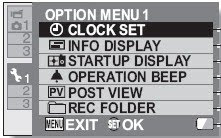
The other (hidden) display option can be accessed only from the Shortcut setting screen at the Options Menu 2.
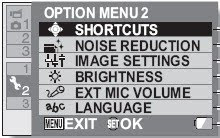
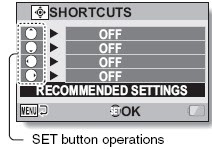
Under the Options Menu 1 (accessible when switch is at either REC or PLAY position), there is a INFO DISPLAY setting when you can select options to display or not the Date & Time and Counter information during Playback of the videos. This is useful when you do not want other information cluttering the screen during playback of the video.

The other (hidden) display option can be accessed only from the Shortcut setting screen at the Options Menu 2.


One of the options for the shortcut button is called DISP. ON/OFF and this sets whether information is displayed on the LCD screen in the idle state. If this option is set to one of the Shortcut button, it will toggle the display information on the LCD screen on and off, prior to taking a photo or a video. This will remove all the clutter when you want to frame your shot. However, once recording is started, relevant information will return to the screen. I suppose this is logical since you need to know what the camcorder is doing.
The difference between these two Display options is that the first one is used during Playback and the second one is used in the idle state. Hope this information is useful for users of the HD2000.
Ronald Kwok
Saturday, August 15, 2009
Stills from videos and slow motion playback
The previous video that I uploaded in Vimeo was not converted well and only parts of the video shows clearly. This is not really the fault of Vimeo since I uploaded it at the full resolution of 1920x1080, 60p while the recommended resolution is only 1280x720. So for this week I uploaded another super macro video shot on flowers, this time at the more modest 30p, 1920x1080 which Vimeo could handle before.
Here is the link to the latest video on Vimeo.
The Sanyo marketing department has been highlighting the Xacti series as a dual camera implying that the still photos are as good as the videos. The HD2000 will produce still photos of up to 12M resolution but they somehow do not look that striking to my untrained eyes.
Anyway, lately I discovered that I can get very good stills by capturing the frames from a video, even though that they are just 2M resolution, taken from 1920x1080 mode videos. (These are good "capture the moment" for me, just for casual viewing but maybe not good enough for professional photographers! They would be using dedicated cameras or DSLR's anyway.) Thus there is no need to be distracted to snap photos while recording your video, you can get your stills from the video itself. From my playing around so far, I found that the best stills can be taken from the video shot at the highest resolution of 1920x1080, 60p and 30p. Those shot at 60i will yield shots that are ghosted for moving subjects and those with panning actions. Of course those taken in bright sunlight will fare better as well.
Here are some examples.
The first two below are taken from videos shot at 60p.


The next two below are from video taken at 30i. The first picture shows ghosting of moving flag and the second shows ghosting while panning.


These two below are from videos taken at 30p. Note the pigeons freezed in mid-flight.


Here is the link to the latest video on Vimeo.
The Sanyo marketing department has been highlighting the Xacti series as a dual camera implying that the still photos are as good as the videos. The HD2000 will produce still photos of up to 12M resolution but they somehow do not look that striking to my untrained eyes.
Anyway, lately I discovered that I can get very good stills by capturing the frames from a video, even though that they are just 2M resolution, taken from 1920x1080 mode videos. (These are good "capture the moment" for me, just for casual viewing but maybe not good enough for professional photographers! They would be using dedicated cameras or DSLR's anyway.) Thus there is no need to be distracted to snap photos while recording your video, you can get your stills from the video itself. From my playing around so far, I found that the best stills can be taken from the video shot at the highest resolution of 1920x1080, 60p and 30p. Those shot at 60i will yield shots that are ghosted for moving subjects and those with panning actions. Of course those taken in bright sunlight will fare better as well.
Here are some examples.
The first two below are taken from videos shot at 60p.


The next two below are from video taken at 30i. The first picture shows ghosting of moving flag and the second shows ghosting while panning.


These two below are from videos taken at 30p. Note the pigeons freezed in mid-flight.


I found that the best way to choose the still shots to be captured is to view your videos in slow motion playback. Didn't know that there is such a mode since this is not highlighted in the manual. Here's how.
1. Select and play your video.
2. Move joystick up to pause the video.
3. Move joystick right for about 1 second to start slow motion playback.
4. At the point you want to capture the still, move joystick up to pause the video.
5. Press the white camera button to capture the still shot. You'll be ask if you want it in 16:9 or in 4:3 ratio.
6. Press the SET button to capture the shot.
7. While paused, you can also move the joystick right to forward select frame by frame.
The slow motion playback moves at about 1/4 speed and it is best for videos shot at 60p where the playback is very smooth. Those shot at 30i and 30p is not as smooth and there is ghosting or shadows for those shot at 30i for moving subjects or panning, maybe because of the interlacing. These ghosting is very apparent when viewing on the LCD screen but when viewed on a HDTV, this is not so apparent. Don't know why so maybe the experts out there can give an explanation.
Happy capturing your stills.
Ronald Kwok
Wednesday, July 29, 2009
Edit Functions in HD2000
I found the built-in editing functions of the HD2000 extremely useful while preparing my videos for uploading into Vimeo. Since I have only the free Vimeo account, I can only upload one HD video per week (just as well or I'll be spending all my time editing my videos), up to 500MB size. Since it also take ages to upload in Vimeo, I have decided to limit my videos to be within 3 minutes which is about 3 hours of uploading time in my case. Thus I need to do a lot of trimming and joining all the short videos that was shot by my wife.
This is where I use a lot of the built in editing functions of Cut and Join in the HD2000. At times I just wish there is also an "Unjoin" function and that would make it complete. Before I proceed to describe the two built in editing functions, here is the link to my latest video uploaded in Vimeo. This one was taken in a public park at the foot of the Pamukkale travertine in the early evening. As most of the park was in shade, it was a good test of the HD2000 as my wife zoomed and panned all over the place from the sunlit travertine to the shaded stream, the open sky to the shimmering water of the lake; the distant trees to a close-up of the ducks and everything else in between. There was also the walking shot as she approached the lake. So you can see how the HD2000 performed in the changing conditions.
Here is the Vimeo link, http://www.vimeo.com/5798898
Despite all the bad press of the poor Image Stabilisation, I think the HD2000 did reasonable well as the shots were completely hand-held and unprocessed. But you can see the auto exposure, auto focus and auto White Balance hard at work as the lighting conditions changed rapidly. It seems a bit slow but it gives that artistic feel.
OK back to the editing functions. There are just two of them - Cut and Join.

This is where I use a lot of the built in editing functions of Cut and Join in the HD2000. At times I just wish there is also an "Unjoin" function and that would make it complete. Before I proceed to describe the two built in editing functions, here is the link to my latest video uploaded in Vimeo. This one was taken in a public park at the foot of the Pamukkale travertine in the early evening. As most of the park was in shade, it was a good test of the HD2000 as my wife zoomed and panned all over the place from the sunlit travertine to the shaded stream, the open sky to the shimmering water of the lake; the distant trees to a close-up of the ducks and everything else in between. There was also the walking shot as she approached the lake. So you can see how the HD2000 performed in the changing conditions.
Here is the Vimeo link, http://www.vimeo.com/5798898
Despite all the bad press of the poor Image Stabilisation, I think the HD2000 did reasonable well as the shots were completely hand-held and unprocessed. But you can see the auto exposure, auto focus and auto White Balance hard at work as the lighting conditions changed rapidly. It seems a bit slow but it gives that artistic feel.
OK back to the editing functions. There are just two of them - Cut and Join.

The Join function is to join several videos into one big video and the limit is that you can only join a maximum of 9 clips at any one time and the 4GB file size limit also applies. You just simply select the clips to join in the order you want by pressing the Set button and numbers will appear on the clips that are selected so that you see if that is the right order.

Then you press the Record button to save the joined videos and you have a choice to save it as a new video or overwrite the existing videos and you can view the joined videos before actually saving it. 
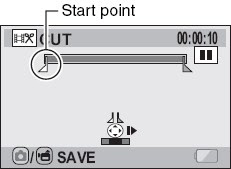
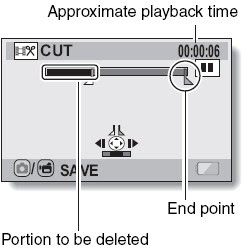
The next is the Cut function. As this is very basic, you can only set two cut points.


Thus you can only cut or save part of the video in the beginning, the end or somewhere in between. To cut more you will have to repeat the process. The only good thing is that by toggling the Set button down you can reverse the portion to be deleted and to be saved. Just as in the Join function, you can save the video as new or overwrite the existing video and to view the edited video before actually saving it.
Since there is no undo function, I sometime wish that there is an "Unjoin" function since at times I want to breakup what is already joined. But you can do it in a roundabout way by using the Cut function twice. Still these two edit functions are very useful as I could not find a video editing software so far that can edit and save the file back in the original HD2000 format which can be played back by the camcorder. I think not many other camcorders has built in editing functions, all will just have the delete video function.
So enjoy your HD2000.
Ronald Kwok
Wednesday, July 22, 2009
HD2000 as a card reader
I tested out the function of the HD2000 as a card reader or an external disk drive by connecting it to my laptop via the USB cable supplied. The camcorder detected the USB connection and the selection screen came on. Once you select the Card Reader, the camcorder will appear as an external disk drive in Windows. You can then just drag and drop files to and fro between the SDHC card and the PC. BTW, the AC power need not be on but the camcorder must first be on to select the card reader function. Thus the HD2000 can act as a SDHC card reader, though a very expensive one!
Other functions under the USB Connection for Computer are MTP (for Vista), Screen Capture and PC Camera.
I tried copying different types of files to the SDHC card and it works but when you you want to play back the files with the camcorder, it must be of the same mp4 format and has the file name SANYxxxx.mp4 where xxxx can be any number. One video clip is just one mp4 file so it is very easy to archive your files on the PC and to copy old files to play back on the HD2000. This is a quick alternative to using the XACTI library when you have a PC around.
For this week's video on Vimeo, I have uploaded a clip taken at an indoor stadium where a few kindergartens (including the one my grandchildren attend) were having their joint sports day.
This is from one of the kindergartens where the performance was easily the best among those taking part. Though some of the kids were out of sync, it was even more fun to watch. Hope you'll also enjoy the video.
This was taken with the HD2000 on a tripod, zoomed and panned. Unfortunately the tripod was not of very good quality (it came free with the camcorder) and the horizontal panning was very jerky. So I learn the first rule of choosing a tripod - make sure the movements are smooth in all directions. The built-in mic also did pretty well as it captured both the very loud music and also the voices of the kids, with no distortion.
Here's the Vimeo link to click on.
Happy viewing.
Ronald Kwok
http://ronaldkwok.atomicblog.hop.clickbank.net/
Other functions under the USB Connection for Computer are MTP (for Vista), Screen Capture and PC Camera.
I tried copying different types of files to the SDHC card and it works but when you you want to play back the files with the camcorder, it must be of the same mp4 format and has the file name SANYxxxx.mp4 where xxxx can be any number. One video clip is just one mp4 file so it is very easy to archive your files on the PC and to copy old files to play back on the HD2000. This is a quick alternative to using the XACTI library when you have a PC around.
For this week's video on Vimeo, I have uploaded a clip taken at an indoor stadium where a few kindergartens (including the one my grandchildren attend) were having their joint sports day.
This is from one of the kindergartens where the performance was easily the best among those taking part. Though some of the kids were out of sync, it was even more fun to watch. Hope you'll also enjoy the video.
This was taken with the HD2000 on a tripod, zoomed and panned. Unfortunately the tripod was not of very good quality (it came free with the camcorder) and the horizontal panning was very jerky. So I learn the first rule of choosing a tripod - make sure the movements are smooth in all directions. The built-in mic also did pretty well as it captured both the very loud music and also the voices of the kids, with no distortion.
Here's the Vimeo link to click on.
Happy viewing.
Ronald Kwok
http://ronaldkwok.atomicblog.hop.clickbank.net/
Wednesday, July 15, 2009
Video sample in mixed lights
I have uploaded another composite video in Vimeo, this time it is made up of tourist sites in Istanbul both taken outdoor as well as indoor. They are shot at the highest resolution of 1920x1080, 60p (60fps). Probably will not see the difference in Vimeo but if you download the original file from Vimeo, you may see the difference but you need to do it within a week since the original file will be removed after that.
Here's the link, http://www.vimeo.com/5592162
One thing I discovered when editing my videos using the built-in cut and join functions in the HD2000 is that you cannot join videos taken with different resolutions. I am not sure if it is the same using external editing program. However, there is no problem when I burn videos on DVD (SD quality) using Nero Visions; I could mix all the different resolutions and can burn them onto one DVD. I suppose this is because they are all down converted to one common file type.
Another thing I found out is that the camcorder (actually the battery) gets quite warm if used continuously and it will not charge when plugged into the docking station. The indicator light on the camcorder will flash red and it will only charge after it has cool down. The light is a solid red when the battery is charging so this is one of the safety feature that prevents the battery from over-heating. So don't panic when you see the flashing red light, just cool it!
Ronald Kwok
http://cbpirate.com/s/cbp/ronaldkwok
Here's the link, http://www.vimeo.com/5592162
One thing I discovered when editing my videos using the built-in cut and join functions in the HD2000 is that you cannot join videos taken with different resolutions. I am not sure if it is the same using external editing program. However, there is no problem when I burn videos on DVD (SD quality) using Nero Visions; I could mix all the different resolutions and can burn them onto one DVD. I suppose this is because they are all down converted to one common file type.
Another thing I found out is that the camcorder (actually the battery) gets quite warm if used continuously and it will not charge when plugged into the docking station. The indicator light on the camcorder will flash red and it will only charge after it has cool down. The light is a solid red when the battery is charging so this is one of the safety feature that prevents the battery from over-heating. So don't panic when you see the flashing red light, just cool it!
Ronald Kwok
http://cbpirate.com/s/cbp/ronaldkwok
Thursday, July 9, 2009
Video taken in bright outdoor light - Turkey
I have posted another video of my recent trip to Turkey, this time taken in good outdoor light and hopefully it will also put the Sanyo HD2000 in better light! Nevertheless, you will notice a lot more shakes especially the one taken in Goreme Valley where my wife was shooting while walking. You can view it here:
http://vimeo.com/5500486
But it took so long to upload and even longer for the conversion before it appeared in Vimeo for download. The most frustrating part was that I had to try uploading several times when the process hanged. I suppose that is because it is a free account and it would be faster (at least for the conversion) if it was a paid account. So there is a price for everything.
Some notes on the video. It was shot in 1920x1080, 30p; totally hand-held and no processing apart from simple cuts and joints. I uploaded it directly into Vimeo so I do not know if the Vimeo conversion has any effect on the video quality. Comments are welcomed.
Happy viewing.
Ronald Kwok
http://ronaldkwok.atomicblog.hop.clickbank.net/
http://vimeo.com/5500486
But it took so long to upload and even longer for the conversion before it appeared in Vimeo for download. The most frustrating part was that I had to try uploading several times when the process hanged. I suppose that is because it is a free account and it would be faster (at least for the conversion) if it was a paid account. So there is a price for everything.
Some notes on the video. It was shot in 1920x1080, 30p; totally hand-held and no processing apart from simple cuts and joints. I uploaded it directly into Vimeo so I do not know if the Vimeo conversion has any effect on the video quality. Comments are welcomed.
Happy viewing.
Ronald Kwok
http://ronaldkwok.atomicblog.hop.clickbank.net/
Tuesday, July 7, 2009
The 4GB file limit test - retest and updates
This is in responce to one reader's query on the gap between the 4GB files if a different class of SDHC card is used. A class 6 card has higher read/write properties than a class 4 card so in theory, the time taken to start and store a file should be faster on a class 6 card compared to a class 4 card; the only question is whether it is noticeable in real life. (Note: A class 2 card should not be used with the HD2000 since it cannot handle the videos at the higher resolutions.)
Since the last time I used a Kingston class 4 card for my test, I did the same test again using a Transcend class 6 card. The result I got proved the above theory since the gap was only 5 seconds compared to 10 seconds the last time. Out of curiosity, I repeated the test again using the class 4 card and the results surprised me.
No, it is not because the gap was shorter than using the class 6 card but because it was shorter than what I measured the last time. This time it was only 7 seconds compared to 10 seconds previously! Not sure if this was the SDHC card itself that affected the results, I repeated the test again with my 2 other Kingston class 4 cards. The results were very similar, one also gave 7 seconds and the other, 8 seconds. For some unknown reasons, the gap is somehow shorter than when I tested it the last occasion. I can only suspect that the cards are now more seasoned after being in used many times and the read/write is a bit faster. Who knows?
To confirm the results, I tested using the Transcend class 6 card again. The result was, thank goodness, consistent at a 5 seconds gap.
For those of you wondering, this is how I did the test; nothing elaborate but something very simple and which I think is fairly accurate. I left the camcorder to run on recording and when the end of file countdown come on, I video the Windows clock. Thus it will show the time the recording stop and also the time when the next video starts again. The difference in the two times captured on video will be the gap. There is a possible error of +- one second but good enough for this purpose.
Since the last time I used a Kingston class 4 card for my test, I did the same test again using a Transcend class 6 card. The result I got proved the above theory since the gap was only 5 seconds compared to 10 seconds the last time. Out of curiosity, I repeated the test again using the class 4 card and the results surprised me.
No, it is not because the gap was shorter than using the class 6 card but because it was shorter than what I measured the last time. This time it was only 7 seconds compared to 10 seconds previously! Not sure if this was the SDHC card itself that affected the results, I repeated the test again with my 2 other Kingston class 4 cards. The results were very similar, one also gave 7 seconds and the other, 8 seconds. For some unknown reasons, the gap is somehow shorter than when I tested it the last occasion. I can only suspect that the cards are now more seasoned after being in used many times and the read/write is a bit faster. Who knows?
To confirm the results, I tested using the Transcend class 6 card again. The result was, thank goodness, consistent at a 5 seconds gap.
For those of you wondering, this is how I did the test; nothing elaborate but something very simple and which I think is fairly accurate. I left the camcorder to run on recording and when the end of file countdown come on, I video the Windows clock. Thus it will show the time the recording stop and also the time when the next video starts again. The difference in the two times captured on video will be the gap. There is a possible error of +- one second but good enough for this purpose.

BTW, there are also slight differences for the length of the video of the 4GB video among the cards used and it ranges from 23:39 to 23:48 using just the length of the video shown on the video playback listing screen.
To sum it up, these are my findings. You'll be the judge to say whether it is conclusive or not.
1. There is a gap between the end of the first 4GB file and the start of the next 4GB file.
2. Using the higher class 6 SDHC card will reduce this gap as compared to a class 4 card which is about 5 seconds as compared to about 7 seconds from the test carried out
3. The length of the video at 4GB also varies slightly depending on the card in use and ranges from about 23 minutes 39 seconds to about 23 minutes 48 seconds.
4. Use a class 6 SDHC card as far as possible.
If you are recording a long video that may exceed the 4GB limit and knowing the above figures, it is best to stop the recording manually at a suitable time before it stops automatically in order not to miss out any critical moments that you wish to capture, should they occur during the gap.
I believe this gap will also occur in all camcorders that uses the FAT32 file system but it may vary for the different brands.
Happy shooting.
Ronald Kwok
http://cbpirate.com/s/cbp/ronaldkwok
Friday, July 3, 2009
First video at Vimeo
As poor Alice thought, "what is the use of a book without pictures or conversations?", you may also ask "what is the use of a video blog without videos?"
So at last you will get to see some videos on this Blog. I just joined Vimeo, a video hosting site, this morning and I uploaded my (or rather my wife's) first video in Vimeo. Since mine is a free account with Vimeo, I can only upload one HD video a week and for my first upload, I have chosen one clip taken in a restaurant in Cappadocia, Turkey during my recent visit there. This was taken in low-light to demonstrate the capability of the HD2000 in this area. The upload was very S-L-O-W and that 2 minute clip took more than 2 hours so I don't know if this is normal or it is because of my slow laptop, my bad line or both.
As most of us know, all the HD camcorders performs pretty well in bright, outdoor lighting; it is only in low light and indoor lighting that we separate the men from the boys. I believe the HD2000 didn't fare too badly and stood among the men as I am more than happy with the result for the money I paid for the camcorder.
The video was shot using 1920x1080, 30p rather than at the highest resolution since it would be easier to edit later on. The camcorder was totally hand-held and set to fully auto mode. No processing was done except for trim and join and hence the raw audio. Comments are most welcomed.
The link for the video is http://vimeo.com/5432398
Enjoy.
Ronald Kwok
http://ronaldkwok.atomicblog.hop.clickbank.net/
So at last you will get to see some videos on this Blog. I just joined Vimeo, a video hosting site, this morning and I uploaded my (or rather my wife's) first video in Vimeo. Since mine is a free account with Vimeo, I can only upload one HD video a week and for my first upload, I have chosen one clip taken in a restaurant in Cappadocia, Turkey during my recent visit there. This was taken in low-light to demonstrate the capability of the HD2000 in this area. The upload was very S-L-O-W and that 2 minute clip took more than 2 hours so I don't know if this is normal or it is because of my slow laptop, my bad line or both.
As most of us know, all the HD camcorders performs pretty well in bright, outdoor lighting; it is only in low light and indoor lighting that we separate the men from the boys. I believe the HD2000 didn't fare too badly and stood among the men as I am more than happy with the result for the money I paid for the camcorder.
The video was shot using 1920x1080, 30p rather than at the highest resolution since it would be easier to edit later on. The camcorder was totally hand-held and set to fully auto mode. No processing was done except for trim and join and hence the raw audio. Comments are most welcomed.
The link for the video is http://vimeo.com/5432398
Enjoy.
Ronald Kwok
http://ronaldkwok.atomicblog.hop.clickbank.net/
Monday, June 29, 2009
Hidden functions of HD2000
There are several hidden functions of the HD2000 that are found only in the shortcuts setting for the toggle switch (the SET button). You can set 4 shortcut functions to the toggle switch, one each to the four different directions of the toggle i.e. up, down, left or right out of a total of 10 recommended settings. The 10 functions that can be set are AF Lock, AE Lock, Focus, Flash, Exposure Compensation, ISO, Self-timer, Exposure, Display on/off and Sequential. (The AF Lock locks the focus while the AE Lock locks the exposure.)

 The shortcut function in the Option Menu 2
Out of these, the AF Lock, AE Lock, Exposure Compensation and Display on/off cannot be found on the normal menu and thus are only available when set as one of the shortcuts. Unfortunately, most of the functions can be set only before recording and are thus only useful for taking still photos rather than videos. Nevertheless, it is better than not having any manual settings at all. Once recording has started, you cannot make any changes with these shortcuts exception for the AF Lock and the AE Lock. These two can be toggled on and off individually or in combination while recording.

Example of shortcuts set
It is very easy to activate these shortcuts by just moving the SET button (the toggle) in any of the four directions and thus it is also very easy for them to be activated unintentionally when the toggle is moved accidentally. Luckily the display will show these if they are activated so it is very important to check the display screen to see if any of these shortcuts have been selected before starting a recording and make the necessary changes where required. Happy shooting!
Ronald Kwok
http://cbpirate.com/s/cbp/ronaldkwok
Subscribe to:
Posts (Atom)


